
First Test in selenium with eclipse
First download selenium server from – http://seleniumhq.org/download/
say (selenium-server-standalone-2.28.0)
and also download language client version of java

Now extract selenium-java-2.28.0 and take only jar file (selenium-java-2.28.0.jar) from it

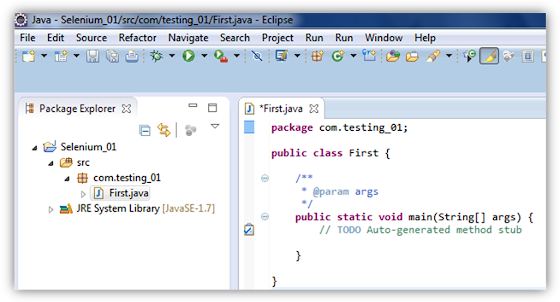
Now create a java project from eclipse
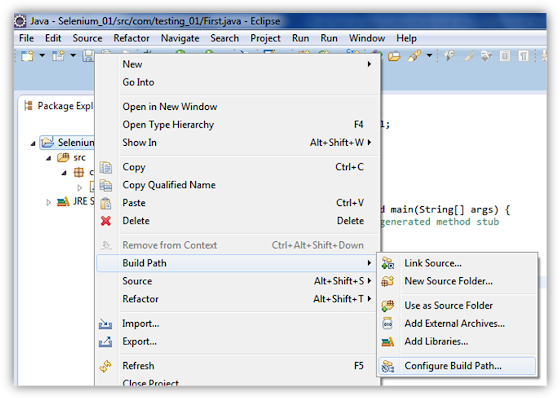
Now goto configure build path by right clicking on the project > Build path > Configure build path
Now in libraries add two jars

Now provide the sample code which open google
package com.testing_01;

import com.thoughtworks.selenium.DefaultSelenium;
import com.thoughtworks.selenium.Selenium;
import static org.junit.Assert.*;


public class First {

	private Selenium selenium;

	public static void main(String[] args) throws Exception{
		First f = new First();
		f.launch_browser();
		f.my_test();
		f.stop_selenium();
	}
	public void launch_browser() throws Exception {
		selenium = new DefaultSelenium("localhost", 4444, "*iexplore", "http://google.co.in/");
		selenium.start();
		selenium.windowMaximize();
		selenium.deleteAllVisibleCookies();
	}

	public void my_test() throws Exception {
		selenium.open("http://www.google.co.in/");
		assertEquals("Google", selenium.getTitle());
		selenium.click("id=hplogo");
	}


	public void stop_selenium() throws Exception {
		selenium.stop();
	}

}
Before you run the code , you need to start the server.
Create a blank server.bat file beside the selenium jar and open it for editing purpose
If your net connection required proxy settings then use
java -jar selenium-server-standalone-2.28.0.jar -trustAllSSLCertificates -Dhttp.proxyHost=proxy.myproxyserver.com -Dhttp.proxyPort=9999
where proxy.myproxyserver.com is your proxy server name and 9999 is your proxy port
otherwise you can only pass
java -jar selenium-server-standalone-2.28.0.jar –trustAllSSLCertificates
into the server.bat file
after successful running the server.bat file in your local you can get this type of output in your cmd
C:\lib>java -jar selenium-server-standalone-2.28.0.jar -trustAllSSLCertificates
May 01, 2013 6:39:10 PM org.openqa.grid.selenium.GridLauncher main
INFO: Launching a standalone server
18:39:11.181 INFO – Java: Oracle Corporation 22.1-b02
18:39:11.196 INFO – OS: Windows 7 6.1 x86
18:39:11.211 INFO – v2.28.0, with Core v2.28.0. Built from revision 18309
18:39:11.456 INFO – RemoteWebDriver instances should connect to: http://127.0.0.
1:4444/wd/hub
18:39:11.458 INFO – Version Jetty/5.1.x
18:39:11.459 INFO – Started HttpContext[/selenium-server/driver,/selenium-server
/driver]
18:39:11.460 INFO – Started HttpContext[/selenium-server,/selenium-server]
18:39:11.461 INFO – Started HttpContext[/,/]
18:39:11.507 INFO – Started org.openqa.jetty.jetty.servlet.ServletHandler@a0187c
18:39:11.508 INFO – Started HttpContext[/wd,/wd]
18:39:11.534 INFO – Started SocketListener on 0.0.0.0:4444
18:39:11.535 INFO – Started org.openqa.jetty.jetty.Server@fd4662
Now you can run your sample java code and will get the desired output.
That’s it
Now you are able to lunch browser from selenium with eclipse IDE
